Once your MT5 CFD account has been created and funded, you are ready to get started with CFD trading. This article covers the key steps to trading CFDs on Bybit, from reviewing contract specifications to placing trades and viewing your trading history.
How to Check Each Contract’s Specifications
Automatic Leverage Adjustment on CFD Trading
How to Place an Order/Open a Position
How to View Positions and Orders
How to Check Each Contract’s Specifications
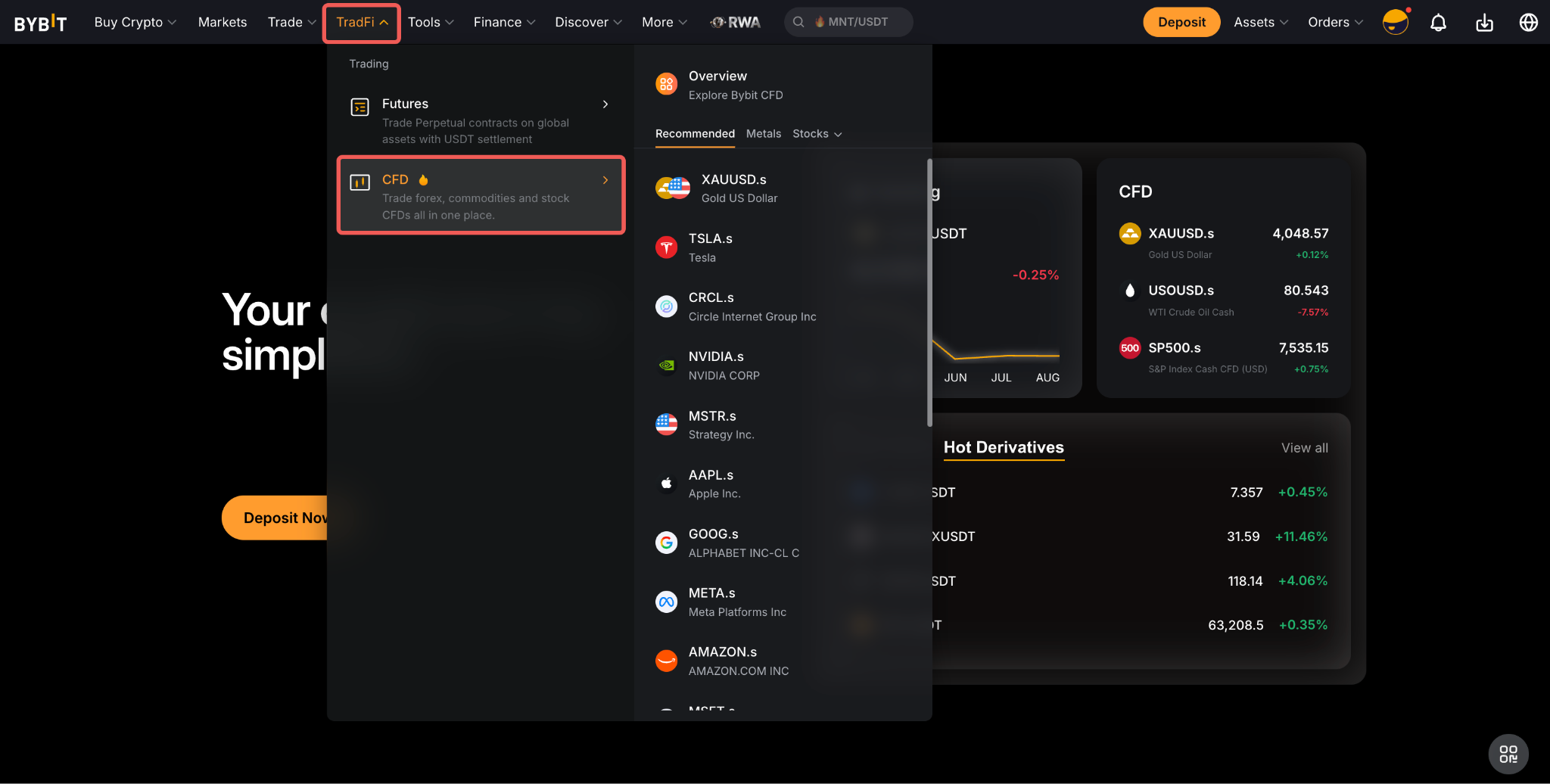
On the Bybit website, go to TradFi → CFD, and select the contract of your choice. Once you are on the Contract page, click Info to see all the necessary information for that specific trading pair.
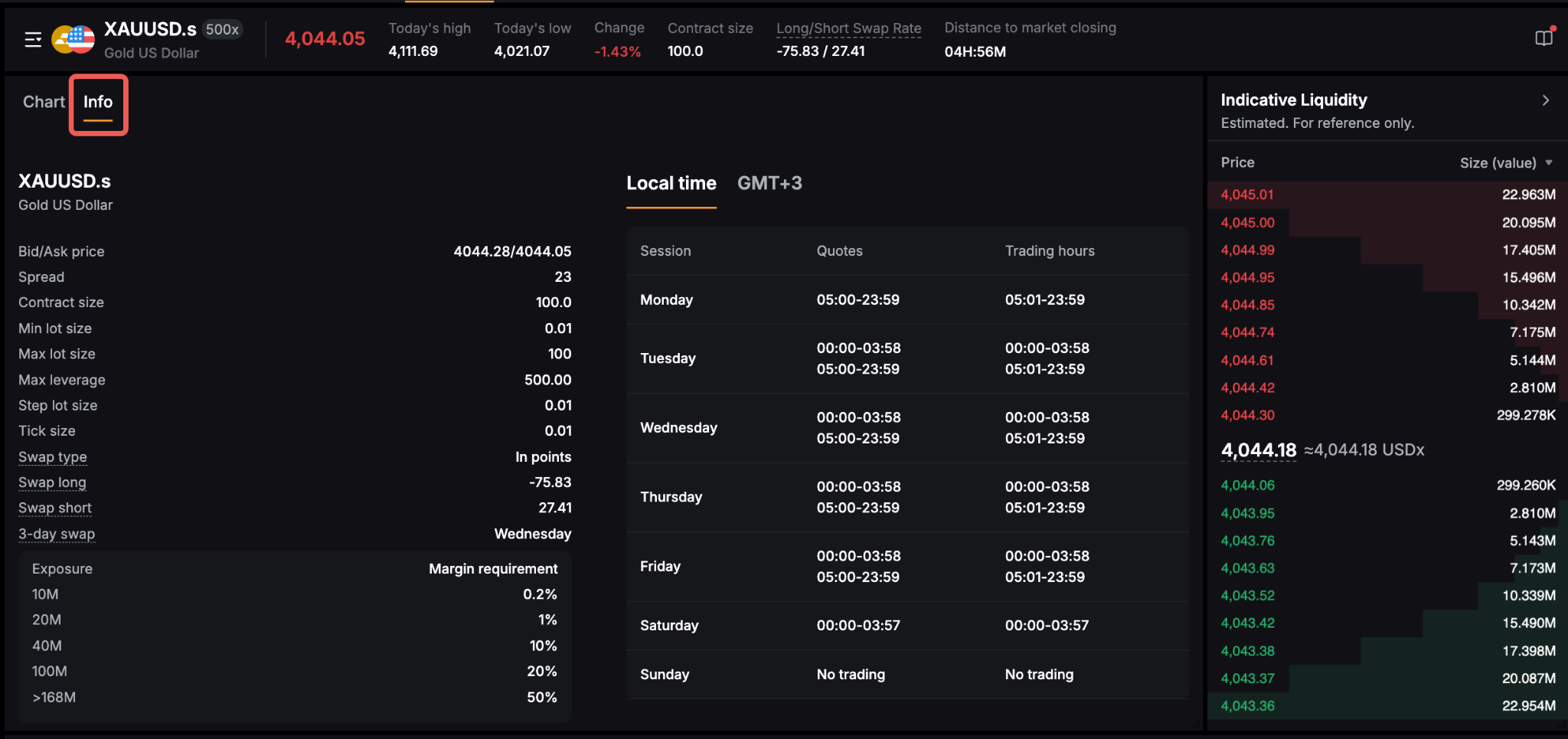
The description of the contract can be found just below the contract name and will include the fiat currency used for this trading pair. Here are more details on the rest of the information available:
Note: A maximum trading exposure limit of 100 million USD is applied to all MT5 CFD accounts and additional trading exposure limits are applied on the following contracts:
These limits are intended to help protect client accounts from potential market volatility and irregular spread conditions during this period.
Automatic Leverage Adjustment on CFD Trading
As part of our ongoing risk management, temporary leverage adjustments are implemented on CFD trading during times of major new releases (not limited to). These changes are designed to protect our users and ensure a stable trading environment, particularly during periods of heightened market volatility.
All affected accounts will have their max and fixed leverage adjusted to a specific temporary average limit. However, if the current leverage is below the limit, it will remain unchanged.
Affected Trading Products & Temporary Leverage Limits:
- Forex: 1:200 leverage
- Oil: 1:10 leverage
- Gold: 1:100 leverage
- Silver: 1:50 leverage
- Indices: 1:100 leverage
- Commodities (including XPT and XPD) : 1:5 leverage
Effective periods:
- 15 minutes before and 5 minutes after major economic news releases.
- 3 hours before market close on Fridays until 30 minutes after market open on Mondays.
- 30 minutes before market close from Monday to Thursday until 30 minutes after the next trading day's market opens.
Applicable news releases (including but not limited to):
- FOMC rate decision, CPI, PMI, PPI, GDP, PCE, retail sales, NFP (non-farm payrolls), ADP (private employment) and crude oil inventories.
Important notes:
- Positions opened during these periods will be subject to their respective temporary leverage limits.
- After the specified periods, positions will automatically revert to your original leverage settings.
- Existing positions will not be affected by temporary leverage adjustments.
How to Place an Order/Open a Position
On the Bybit's CFD trading page, you can open a position in two ways.
Quick Trading
Use the Quick Trading features on the trading chart to quickly place Market or Tigger orders. To enable these features, click the Display icon at the top of the chart and select the relevant Quick Trading options
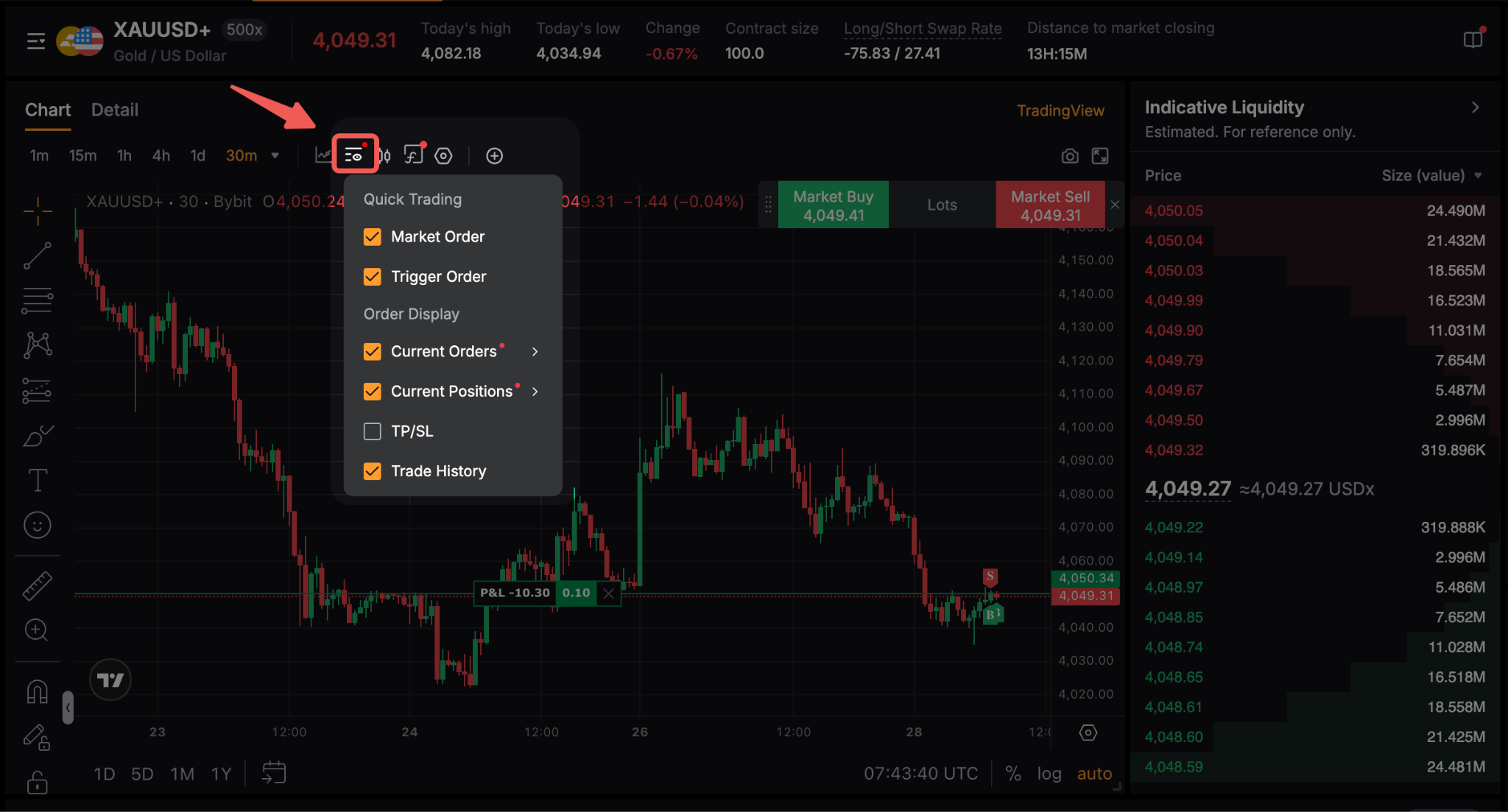
For more information, please refer to this guide.
Order Zone
You can place both Market and Trigger orders in the order zone, where you can customize each order based on your trading strategy.
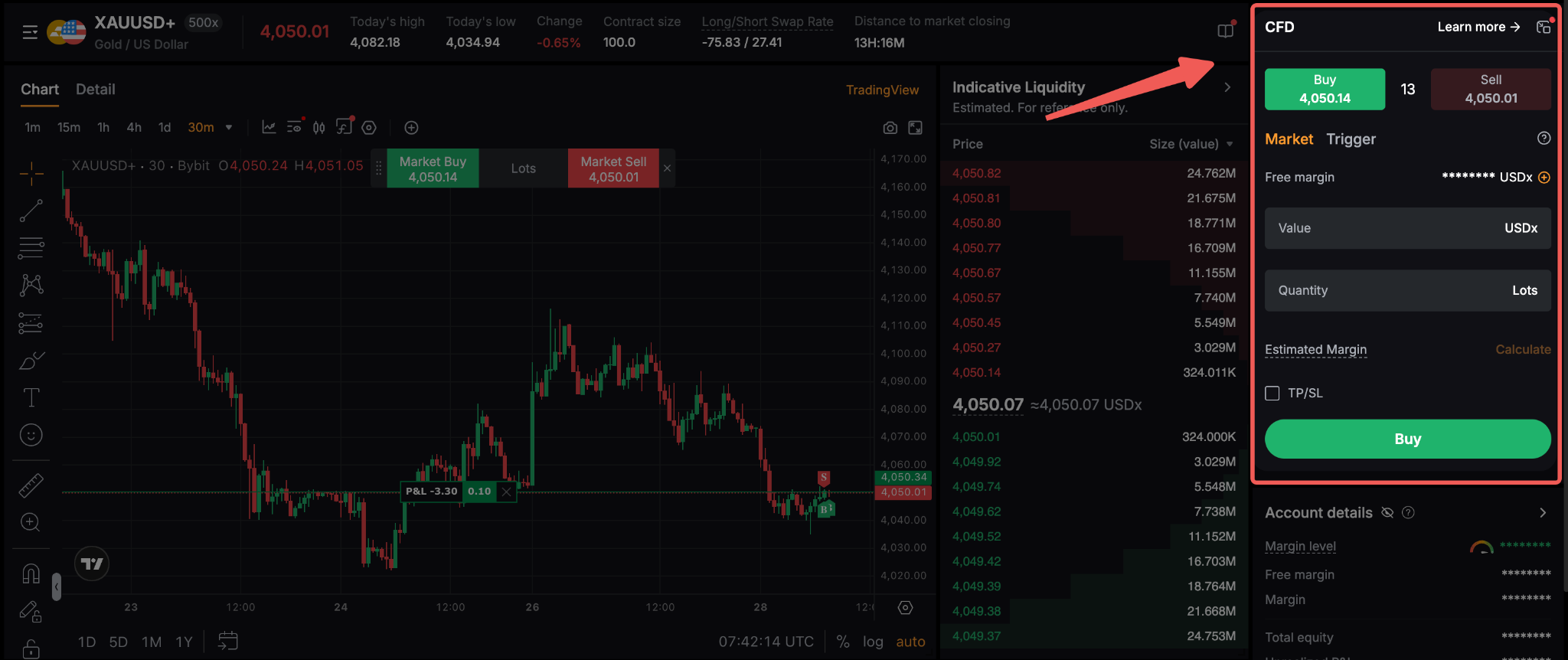
You can select your order type to proceed with your trade:
Market order
A market order is an instruction to buy or sell a security immediately at the current market (bid/ask) price.
- Buy Market Order: Executes a buy trade at the current ask price.
- Sell Market Order: Executes a sell trade at the current bid price.
Traders can choose to input either the Value or the Quantity. The other field will be filled automatically. When entering a Value, the system will automatically calculate the Lots size based on the value amount and minimum lot size requirement.
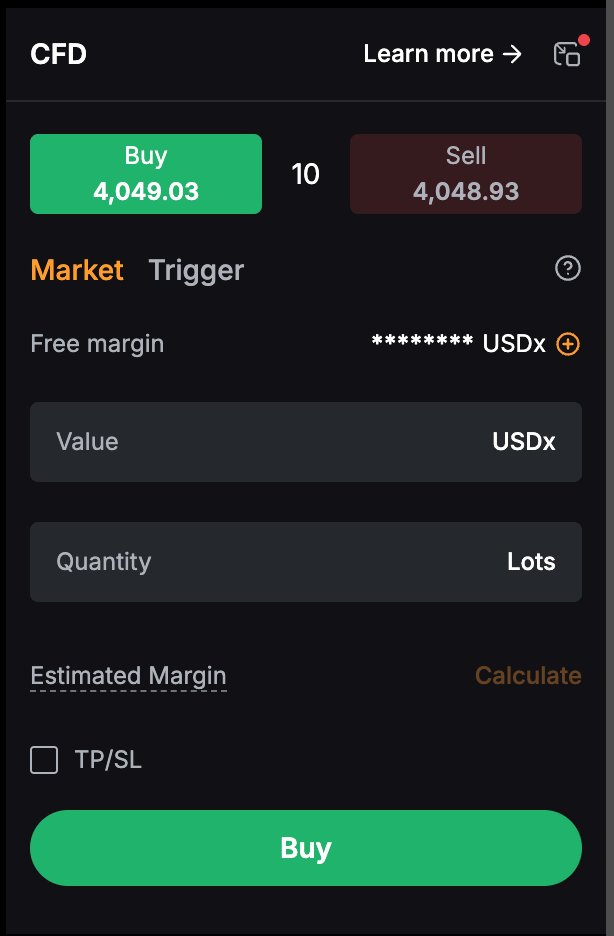
Trigger Order
Trigger orders are pending order instructions to buy or sell a security at a specified price in the future.
- Sell Trigger Order with Price higher than the current bid price will be treated as a Sell Limit Order.
- Sell Trigger Order with Price lower than the current bid price will be treated as a Sell Stop Order.
- Buy Trigger Order with Price lower than the current ask price will be treated as a Buy Limit Order.
- Buy Trigger Order with a Price higher than the current ask price will be treated as a Buy Stop Order.
Traders need to input both the Trigger Price and either the Value or the Quantity in order to place the order. The order will be executed once the market price reaches the trigger price.
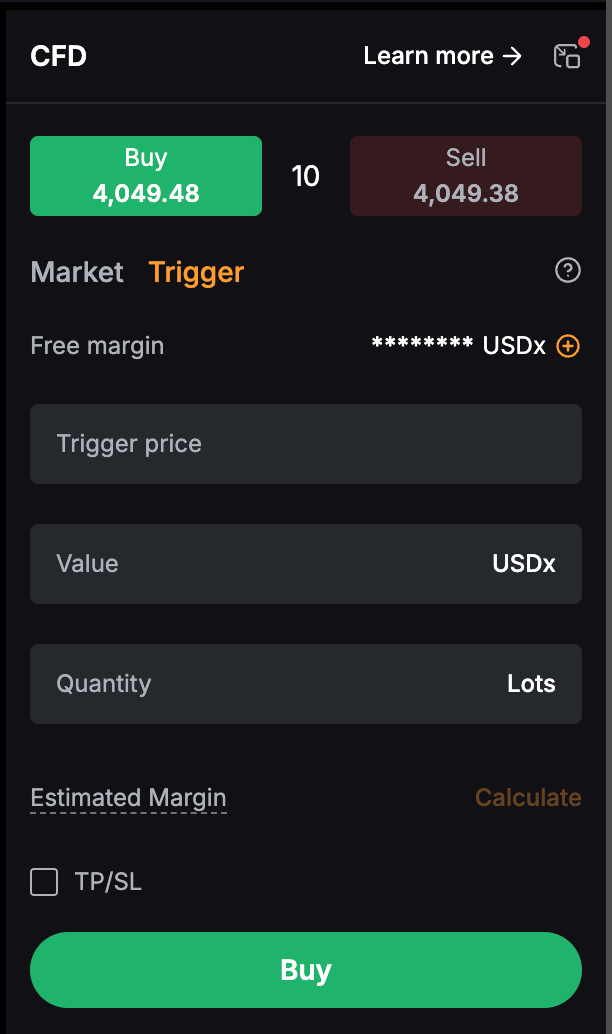
The Estimated Margin section, located below the Lots field, displays the estimated margin required for the trade. After entering the Value or Quantity, click Calculate to view the estimated margin requirement. To understand the Margin Calculation for CFD Trading, please refer to the article Margin Calculations on CFD Trading.
Notes:
— Regardless of the order type, slippage may occur due to market volatility or changing liquidity conditions, resulting in an execution price that differs from the displayed or expected price. For more information, please refer to Slippage in CFD Trading.
— The indicative liquidity displayed for each CFD instrument is for reference only and may change based on market conditions. It does not guarantee the volume available for execution at a specific price. For more information, please refer to CFD Indicative Liquidity.
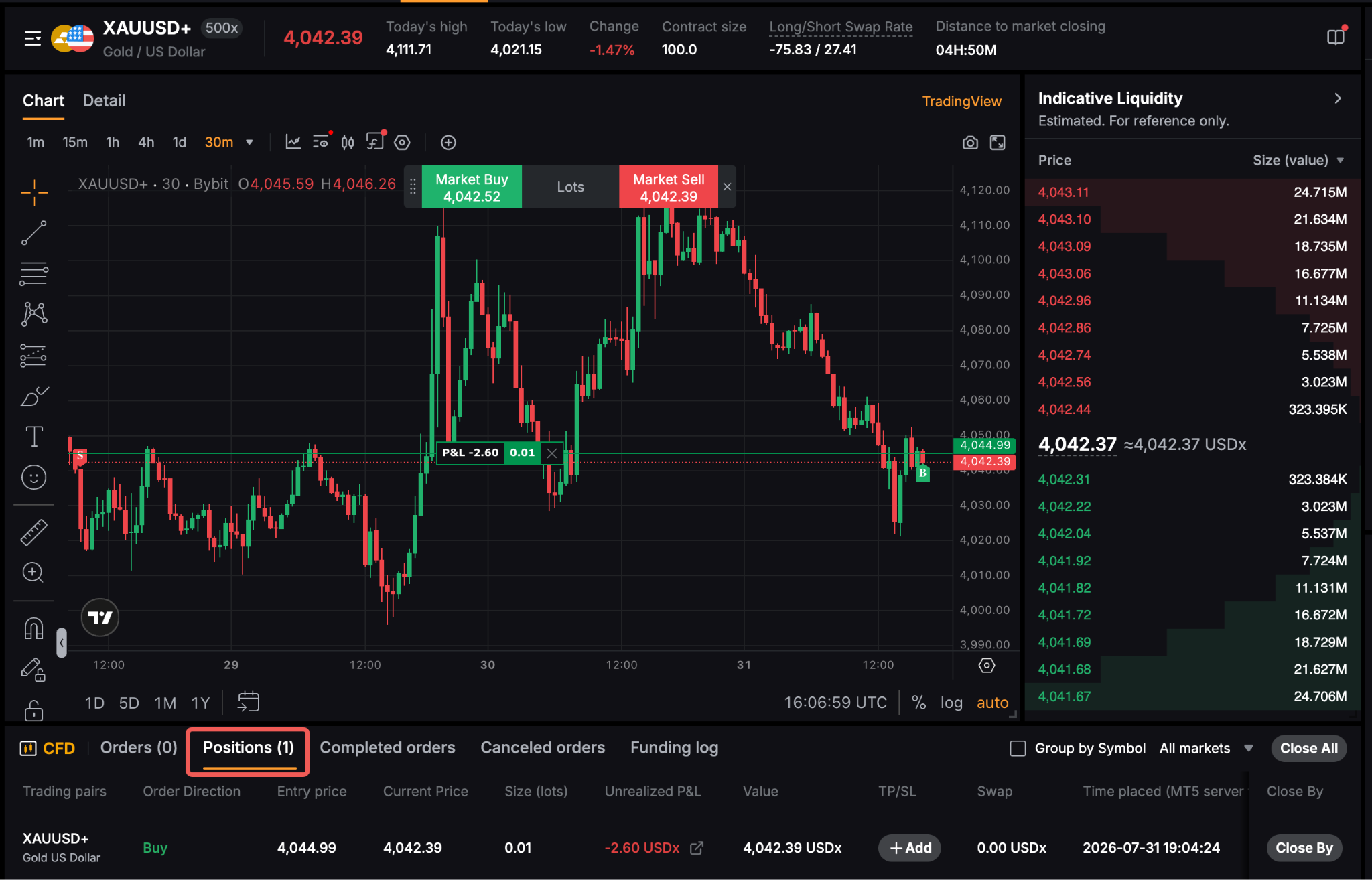
After an order is placed and a position is opened, traders can view their order details and position information at the bottom of the trading page.
How to View Positions and Orders
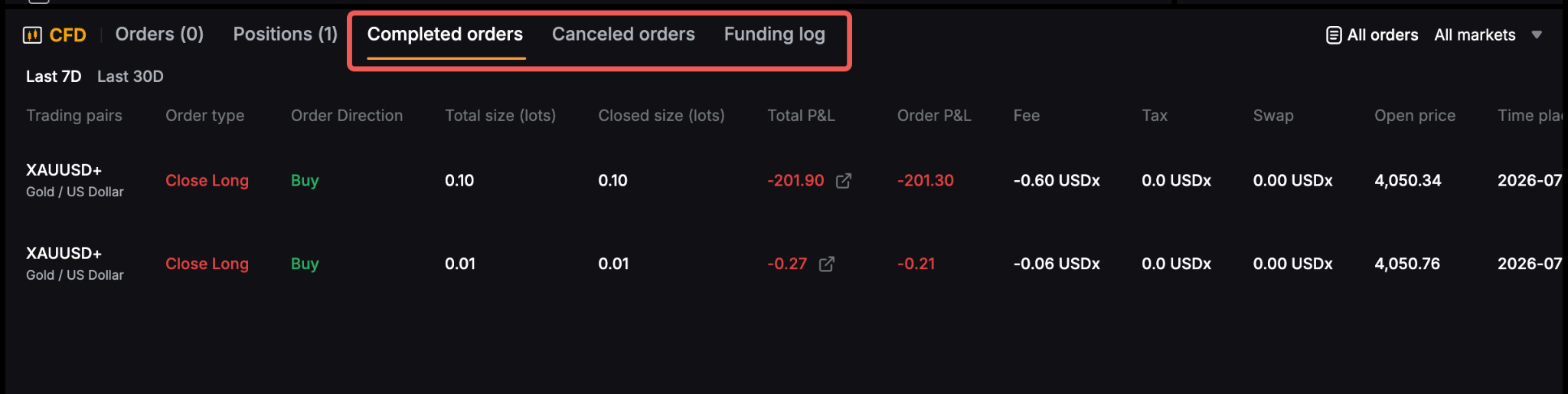
Below the trading chart, you can view different types of trading records using the following tabs:
- Orders – Displays active orders that are waiting to be executed. You can view order details, modify supported orders, or cancel pending orders.
- Positions – Displays your current open positions, including key information such as unrealized P&L and setup TP/SL. You can also manage or close your positions from this tab.
- Completed Orders – displays successfully executed orders, including details such as the entry price, quantity, realized P&L, fees, swap charges, and execution time.
- Canceled Orders – displays orders that were canceled before execution, together with the relevant order details.
- Funding Logs – Displays the history of asset transfers into and out of your CFD account.
If you need a more comprehensive view of your trading activity, click All Orders in the upper-right corner of this section to access the CFD All Orders page, where you can review your complete order history and funding records.