
This comprehensive guide outlines the steps to effectively capture and send video recordings from your computer to Bybit. Learn how to record on various platforms and seamlessly upload your videos.
Record Video on Computer
On MacOS
On Windows 10
Other Computer Operating Systems
Upload a Large Video File
Via Google Drive
Via WeTransfer
Record Video on Computer
On MacOS
Step 1: With macOS Mojave, press Shift-Command (⌘)-5 to access all the controls needed for video recording and screen capture. Use these on-screen controls to select whether to record the entire screen, a selected portion, or make a screenshot of your screen. For older versions of macOS, you can use QuickTime Player to record the screen.
Step 2: Click on the on-screen controls to select the screen to record and start the video recording. Use the thumbnail to save.
Step 3: After stopping the recording, a thumbnail of the video briefly appears in the lower-right corner of your screen. Swipe the thumbnail to the right, and the recording is automatically saved. The default name for the saved recording is the Screen Recording date at time.mov.
For more information, please refer to the official Apple Support Guide here.
On Windows 10
On Windows 10 devices, press [Windows]+[G] on your keyboard and click on Yes, this is a game. This built-in tool is not limited to gaming and can be used to record any screen activity.
Click on Start recording or press [Windows]+[Alt]+[R] to start, and use the same shortcut to finish. If the Start recording button is not visible, please click on Capture first.
Recorded videos will be saved in your Videos/Capture folder in MP4 format. The folder can be accessed inside the default File Explorer page by navigating to This PC → Videos → Captures.
Note: For enhanced security, Bybit recommends keeping your operating system up to date. For more info, please visit here.
On Other Computer Operating Systems
Some operating systems may not have a built-in screen recorder. In this case, you can download third-party software for screen recording.
To get started, download OBS Studio and follow the step-by-step guide on wikiHow.
Upload a Large Video File
If you are ready to send your screen recording but find that the video file exceeds the supported size, please follow the steps below for detailed guides.
Via Google Drive
Please note that Gmail limits the attachment size to 25 MB for emails. However, if you are using a Gmail address, you can use Google Drive to send screen recordings larger than 25 MB.
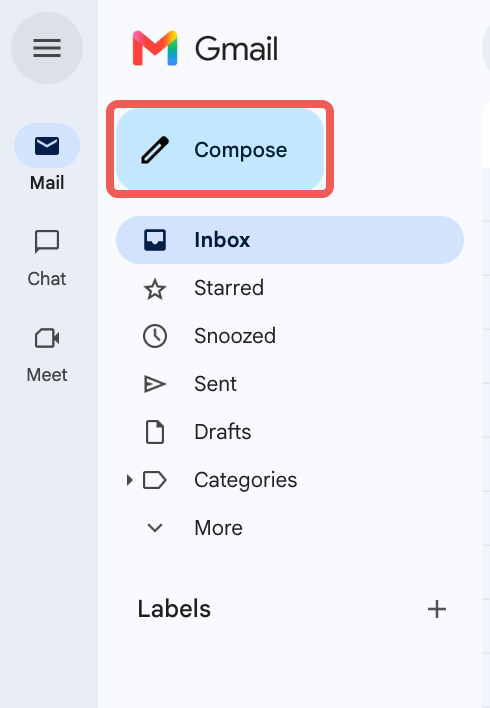
Step 1: On your computer, open Gmail and click on Compose to start your email.
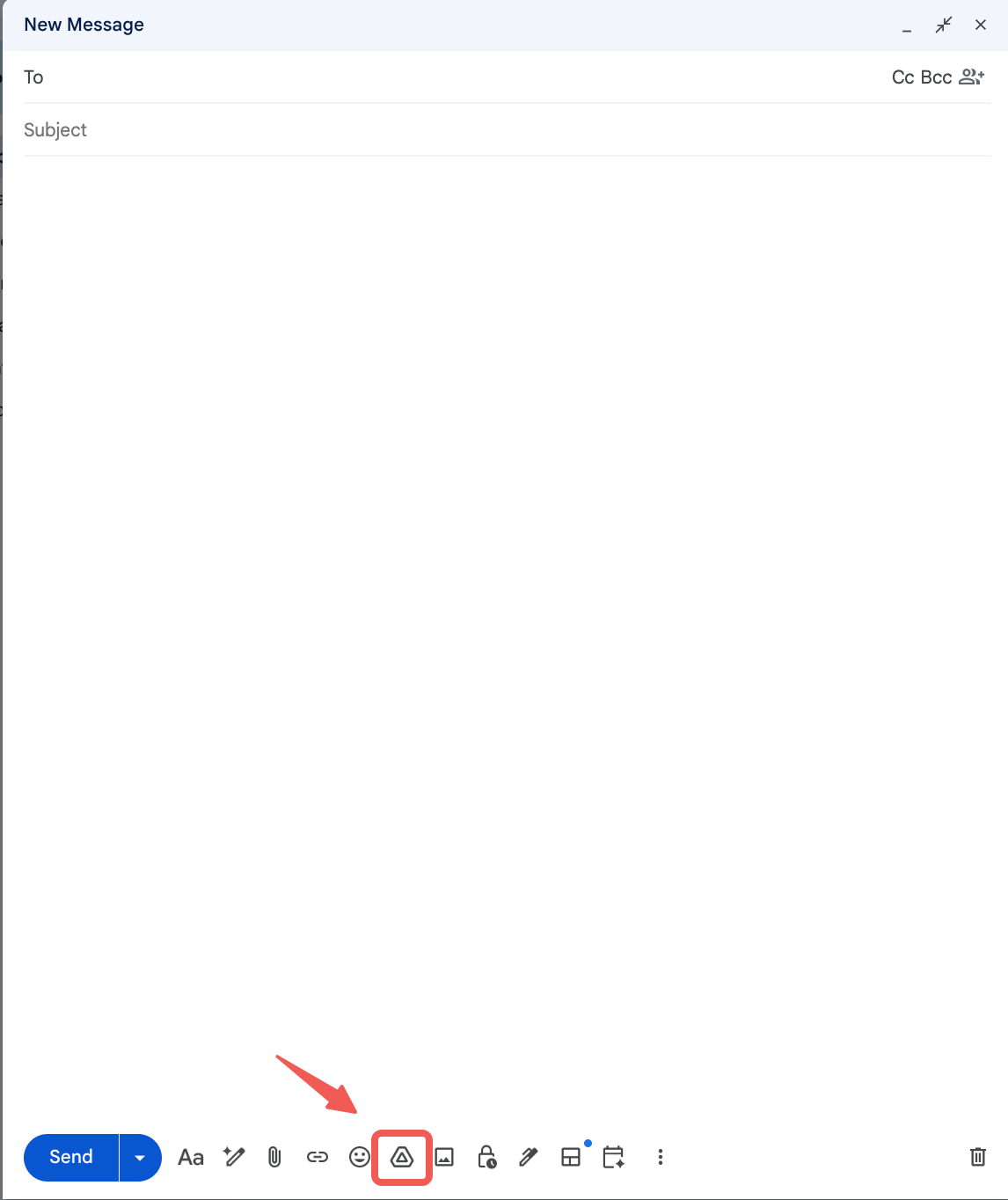
Step 2: Click on the Google Drive icon and upload the file you want to send.
Step 3: Before sending your email with the file link, please click on the video to open it in a new window and click on the Share button.

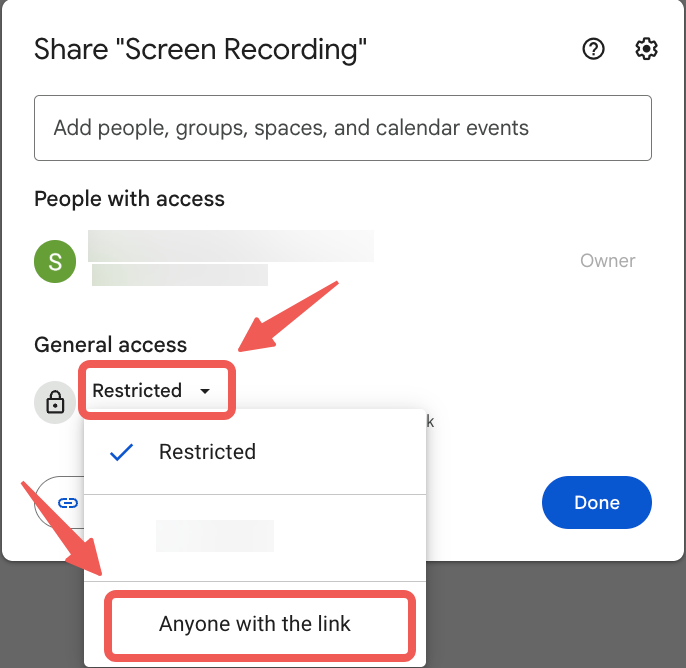
Step 4: Click on Restricted. In the drop-down menu, select Anyone with the link and ensure it is in viewer mode.
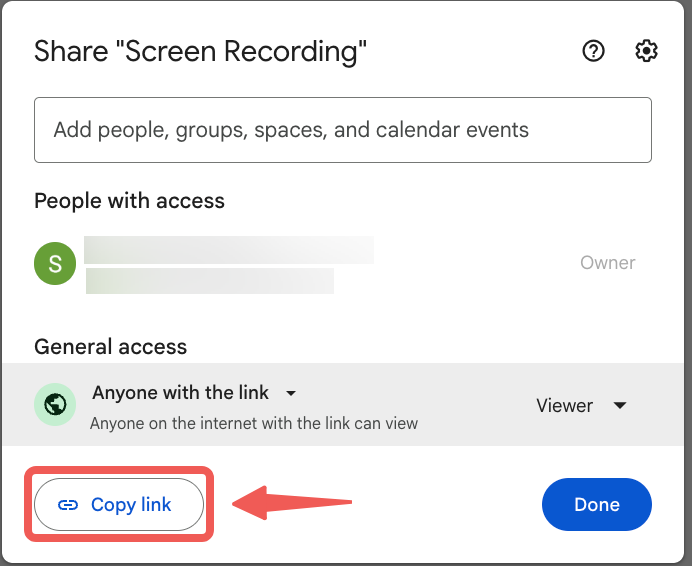
Note: If you are using the form to send your screen recording, please click on Copy Link and paste the link in the description box when submitting your request.
You can find a video guide here.
Via WeTransfer
If your email provider doesn't allow larger attachments, use WeTransfer to create a video file link for Bybit to access.
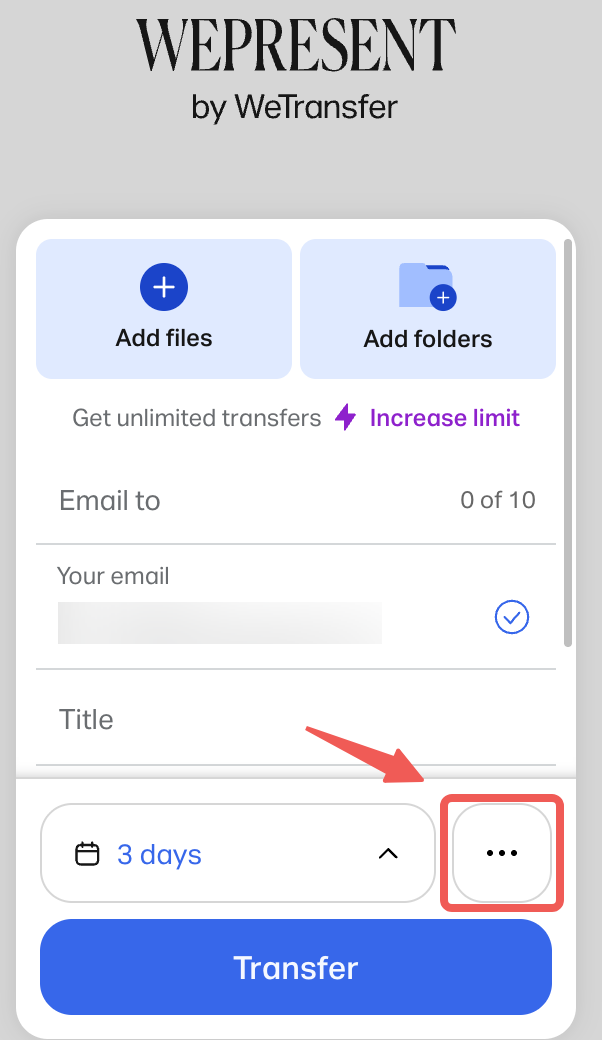
Step 1: Go to https://wetransfer.com/ and click on the three-dot icon next to the Transfer button.
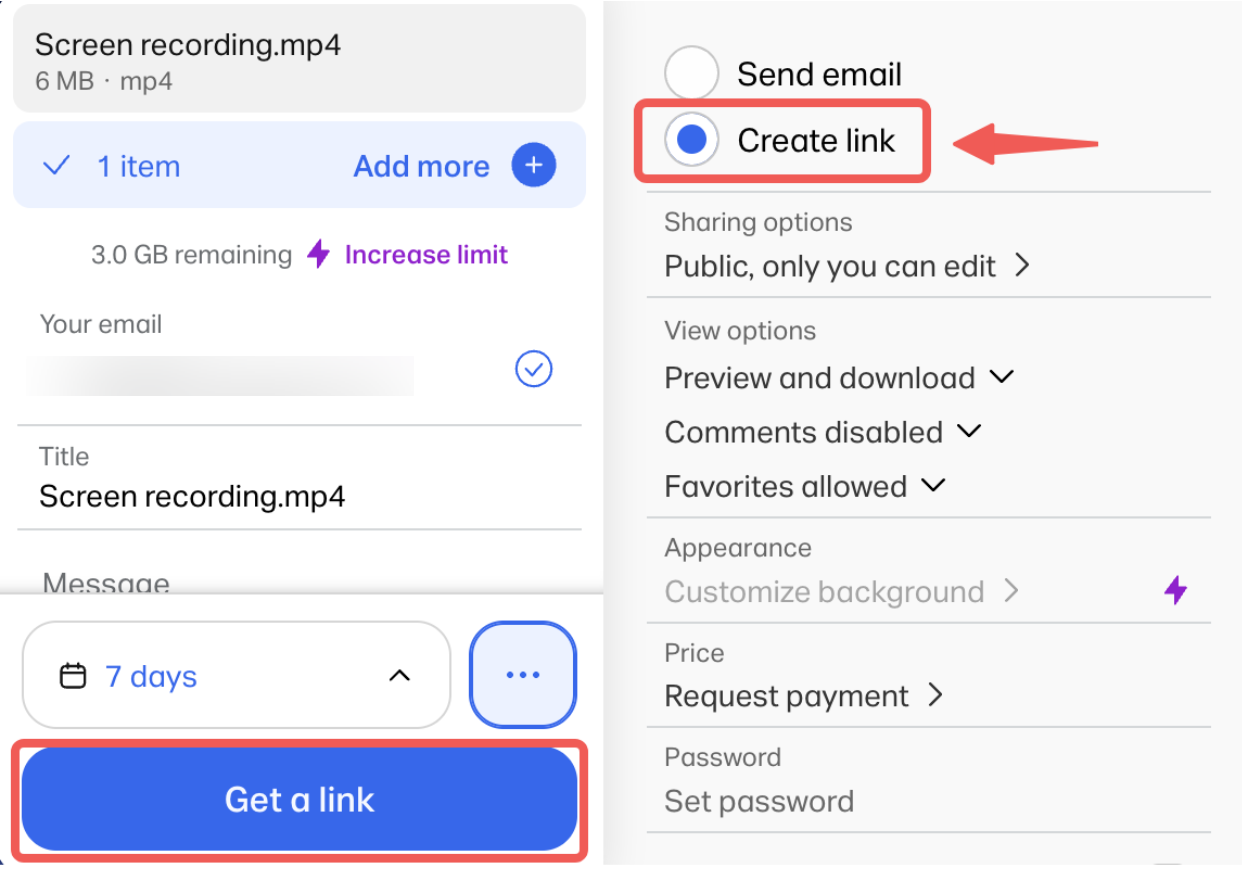
Step 2: Select Create link, upload your file, and click on Get a link. You can also include a message to our team if needed.
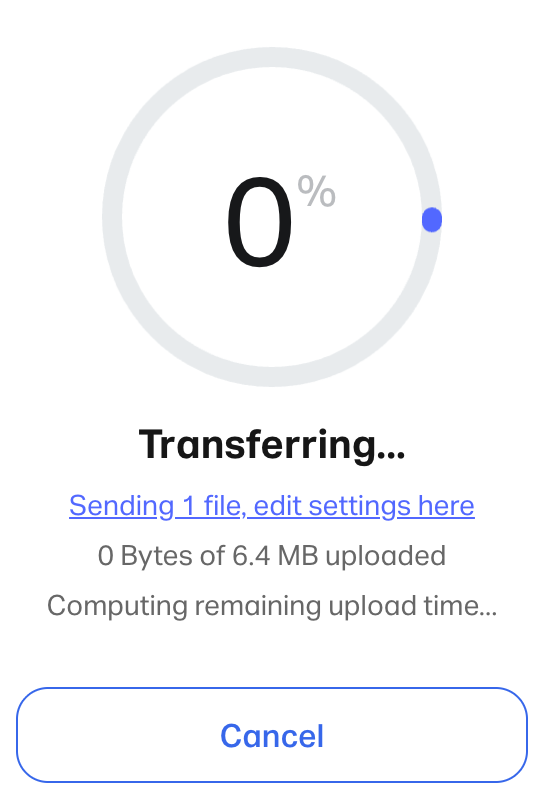
Step 3: The file will start to transfer.
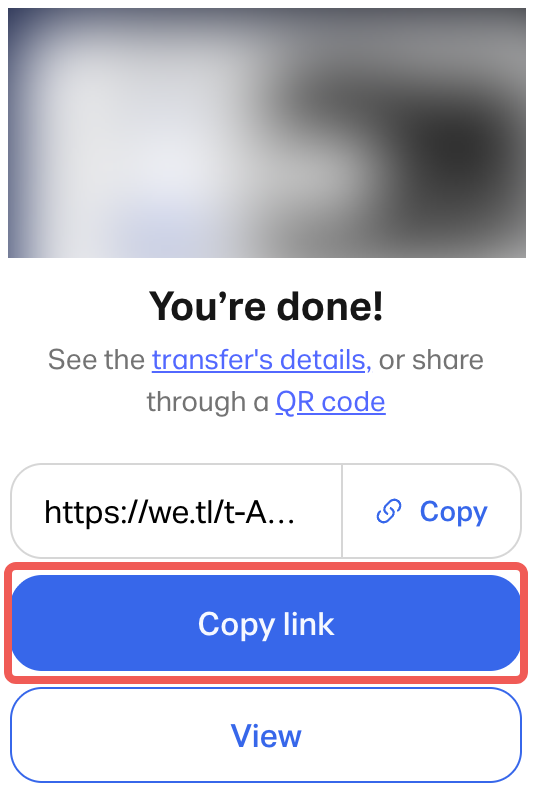
Step 4: After the transfer is completed, you will see your transfer link. Click the Copy link button and paste the link into your response to our email, or enter it in the form description box when submitting your request.
Note: The download link expires after a set number of days (the default may vary) and will be automatically deleted thereafter.
For a video guide, please refer to the guide here.
Please note that Bybit is not related to or affiliated with Apple, Samsung, Xiaomi, Huawei, OPPO, Mobizen, OBS, Wikihow, Google Drive, or WeTransfer. Traders are advised to download and use the app or software at their discretion.